Universal Plugin Installation Guide
macOS & Windows Setup
Complete step-by-step instructions for installing all Signal Lab audio plugins (ResoClear, StageClear, Elliptra EQ, etc.), resolving OS Gatekeeper & SmartScreen security prompts for custom studio binaries.
Why do macOS and Windows display a security alert?
Signal Lab plugins are engineered in pure C++, ensuring optimal compatibility with all CPU and DSP architectures. As independently developed software, they have not yet undergone the annual commercial EV Certificate registration process with Apple or Microsoft. Consequently, macOS (Gatekeeper) and Windows (SmartScreen) may cause some inconvenience and display security warnings when running the installer for the first time.
Rest assured, all our plugin files are 100% safe, free of malware, and have passed Tracktion Pluginval Level 10 testing with zero errors (0 Failures), ensuring absolute safety for your operating system and audio processing.
We are actively working to streamline the installation process to provide an even better user experience in the near future. We apologize for any inconvenience, and thank you for trusting us to be part of your valuable music productions.
Download and Run Installer (.pkg)
Universal Binary package bundling VST3, AU (.component), and Standalone Application
Double-click the downloaded installer package (e.g. Install ResoClear.pkg or Install Elliptra EQ.pkg). If your Mac launches the standard installation wizard without interruption, proceed through the setup to completion.
Handling macOS Gatekeeper Security Alerts
Dialog: “Apple cannot check it for malicious software” or “Unidentified Developer”
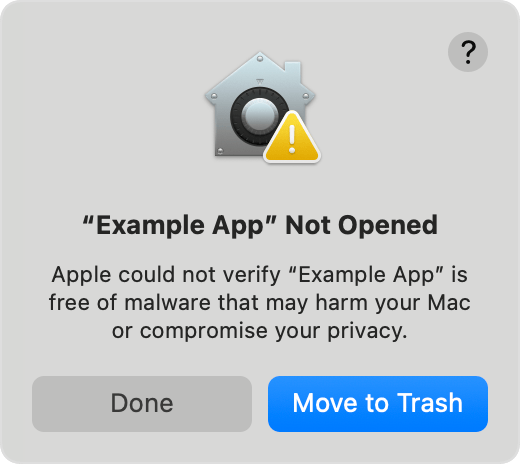
Control + Click (or Right-Click)
- Hold down the Control key and click on the
.pkgfile (or Right-Click). - Choose Open from the contextual menu that appears.
- In the confirmation prompt, click the newly revealed Open or Open Anyway button to begin installation.
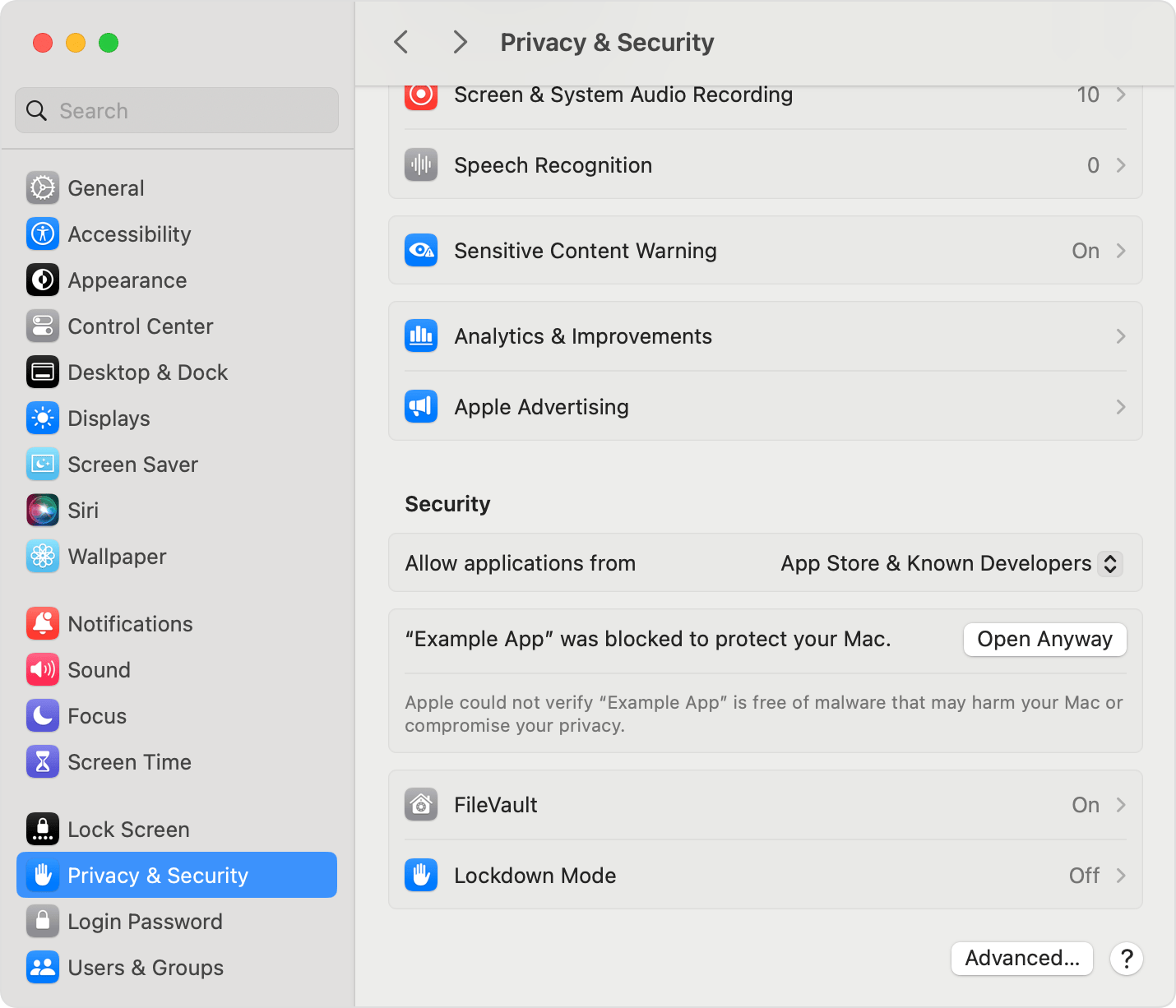
Allow via Privacy & Security
- Click the Apple menu () at top-left → Select System Settings.
- Navigate to Privacy & Security in the sidebar.
- Scroll down to the Security section to locate the blocked installer notice.
- Click Open Anyway and authenticate with your Mac user password or Touch ID.
If plugin bundles are quarantined after manual copying, launch Terminal and execute the following commands to immediately strip the quarantine attribute:
Audio Unit Cache Reset & DAW Rescan
Resolve missing plugin names or outdated cache states in Logic Pro and other DAWs
macOS caches AU plugins via the AudioComponentRegistrar daemon. If Logic Pro does not recognize the new plugin, execute this command in Terminal to force an immediate registration refresh:
Download and Run Setup Wizard (.exe)
Standard Windows Setup Wizard automatically deploying 64-bit VST3 & Standalone Application
Double-click the downloaded setup file (e.g. Install ResoClear.exe or Install Elliptra EQ.exe) to open the setup wizard.
Handling Windows Defender SmartScreen
Blue alert dialog: “Windows protected your PC” (Microsoft Defender SmartScreen)
Click 'More info' → 'Run anyway'
- On the blue SmartScreen window, click the underlined More info link.
- The dialog expands to show the application name and publisher (Unknown publisher).
- Click the newly revealed Run anyway button at bottom-right to continue setup.
Allow in Windows Security
- Open Windows Security → Virus & threat protection.
- Select Protection history to locate any blocked plugin entries.
- Click Actions → Select Allow on device.
- Optionally add a folder exclusion for your standard VST3 directory.
Standard 64-bit VST3 Paths & DAW Rescan
Standard 64-bit VST3 directory and setup guidelines for Windows DAWs
The setup wizard deploys 64-bit .vst3 plugin binaries to the standard system directory where all modern DAWs scan by default:
Common Files\VST3 is in search paths → Click Rescan AllFrequently Asked Questions (FAQ)
100% safe. All our plugins are natively built in pure C++ using the JUCE DSP framework specifically for real-time audio processing. They contain no bundled junkware, no telemetry spyware, and pass Tracktion Pluginval Level 10 strictness stress tests with 0 failures before release.
This is usually caused by macOS caching previous AU scan states. Open Terminal, execute killall -9 AudioComponentRegistrar, then launch Logic Pro, navigate to Plug-in Manager, search for “Signal Lab”, and click “Reset & Rescan Selection”.
Go to Studio → VST Plug-in Manager → Select the “Blocklist” tab → Highlight the Signal Lab plugin → Click “Reactivate” at the bottom. Cubase will re-probe the plugin and activate it.
Yes, 100% compatible with Waves SuperRack Performer! Signal Lab installers automatically deploy standard 64-bit VST3 plugins to system directories, fully supported by SuperRack Performer for ultra-low latency live sound and mastering environments.
How to load:
- Launch Waves SuperRack Performer (if running during install, close and relaunch to allow the app to scan plugins).
- In the desired Rack Slot, click the empty slot (
+sign) to add a plugin. - Navigate to the Signal Lab category to find all of your Signal Lab plugins, or search by plugin name in the search bar, then click to load and process audio in real time.
- For macOS: If a new or recently updated plugin does not appear yet, find the 'Preset' dropdown arrow at the top-left of the window, hover over VST3, and click “Clear Caches and Rescan” to clear caches and initiate a fresh plugin scan.
- If still not detected (macOS): Launch Terminal and run this command to strip the quarantine flag:
sudo xattr -dr com.apple.quarantine /Library/Audio/Plug-Ins/VST3/
Yes! The installer for Signal Lab on both Mac and Windows will automatically install the Standalone Application. On Mac, it is located in the Applications folder, and on Windows, it is in C:\Program Files\Signal Lab\. You can double-click to launch and use it immediately, in cases where that specific plugin supports Standalone mode, which is available for select plugins only.